1.6: IO Redirection
Chapter 6
Introduction
So far, we ran commands that displayed text on screen, be it errors or intended output. In cases like the cp -i command, the system expects user input to continue the execution. The system uses the keyboard as Standard Input and the monitor as Standard Output and Standard Error.
Let us look into one of the most powerful features of Unix called IO Redirection. It enables us to use files instead of the keyboard and monitor as standard input and output. We will discuss the usage of pipes - | to pass the output of one command as input to another. Using the pipes, we can build a command pipeline to solve complex problems using several commands that run sequentially.
Using the IO redirection and the pipes in particular, we can bring synergy by using multiple commands together where the end result is greater than the sum of the parts (commands).
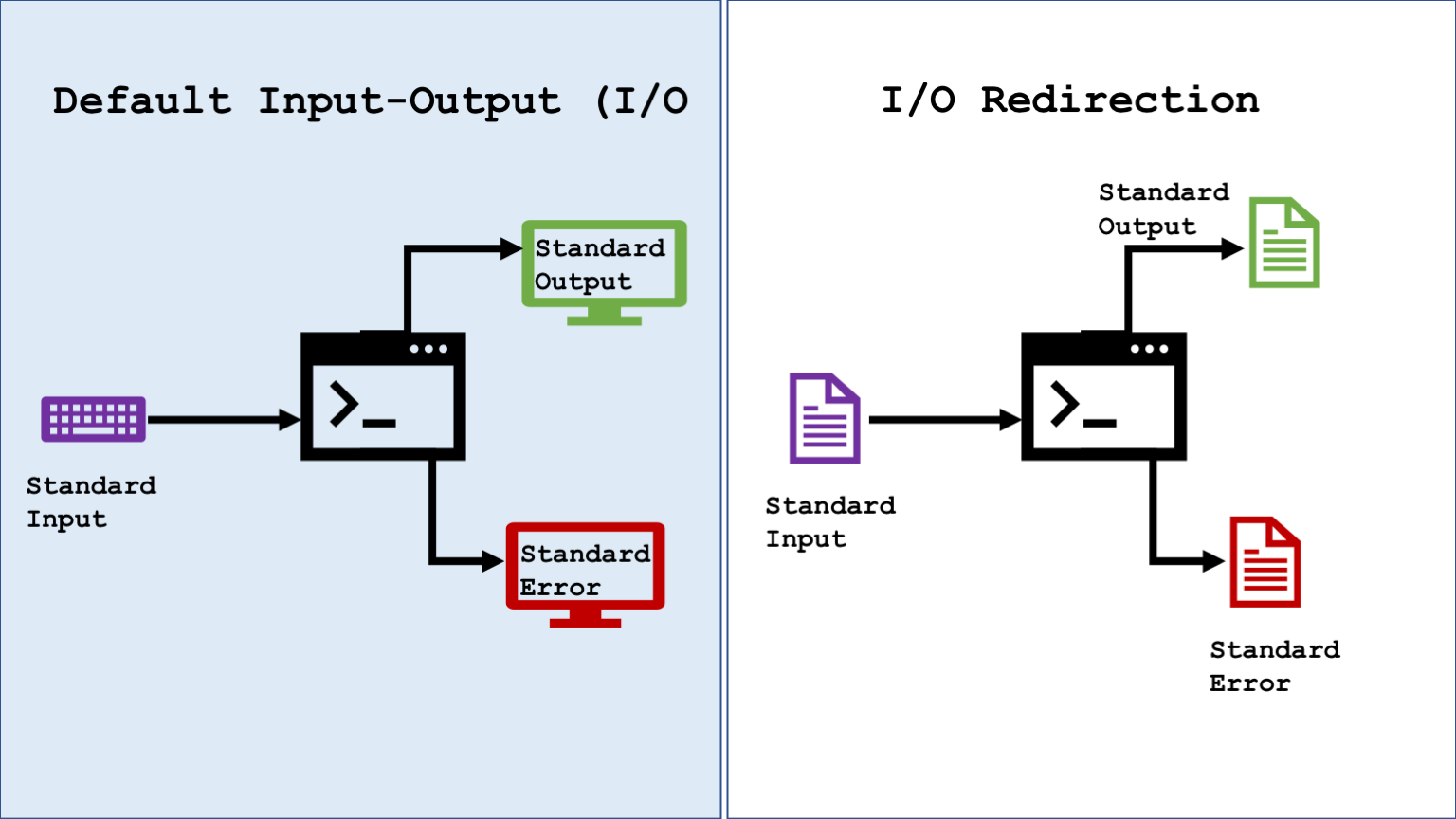
How it works ?
Many commands use stdin if no arguments are provided. For example, the cat command that display the contents of a file, uses the stdin if no file its provided. It waits for the user to type something, when the user press the enter key, displays the content and this keeps going until cat receives CTRL-D key.
$ cat
Hello, World
Hello, World
Good Bye
Good Bye
CTRL-D
Another Example
Let us consider the following scenario; We have a comma-delimited student data file that has students grade and scores. One of the requirement is to get the counts of students who received greater that 50 score points and group the count by grade(3rd, 4th, 8th grades…). We can write a program or we can use the following set of commands
Note: The below command pipeline is just for demonstration. We will look into the commands used in the demo later.
awk: extract all records that has score greater than 50.awk: extract just the grade alone.sort: sort output from awk by grade.uniq -c: get count by grade; displays count followed by grade.awk: reformat output by swapping counts and grades.
Here is some sample records
# studentId,lastName,firstName,gender,grade,score
$ tail student.csv
A0000078,Clark,Joyce,F,04,92
A0000079,Stevenson,Laura,F,06,90
A0000080,Jackson,Melissa,F,07,88
A0000081,Rogers,Matthew,M,06,90
Here is how the command will look
$ awk -F, '$NF >= 50 {print $5}' student.csv | sort | uniq -c | awk '{print $2, $1}'
03 2
04 3
05 4
06 5
07 3
08 2

# sum up the counts above, run awk with `$NF < 50` to verify
$ wc -l student.csv
  23 student.csv
Another way to solve this by writing a program. Let us create a python script and compare the command-line solution against it
  1 # name: counts.py
  2 # purpose:
  3 #   reads 'student.csv', filter the records by score >=50
  4 #   accumulate the counts by grade and display the results
  5
  6 stats = dict()
  7 with open('student.csv') as fh:
  8     for rec in fh:
  9         data = rec.strip().split(",")
 10         score = data[-1]
 11         score = int(score)
 12         if score < 50:
 13             continue
 14         grade = data[-2]
 15         stats[grade] = stats.get(grade, 0) + 1
 16
 17 for grade in sorted(stats):
 18     print(f"{grade} {stats[grade]}")
$ python3 counts.py
03 2
04 3
05 4
06 5
07 3
08 2
Here is the command sequence we used, It looks pretty small, right?
$ awk -F, '$NF >= 50 {print $5}' student.csv | sort | uniq -c | awk '{print $2, $1}'
Using commands and redirection, we can build a quick prototype and validate before developing code.
Redirection
In Unix, everything is treated as a file. We have seen that keyboard and monitor are used as default stdin and stdout respectively. Since Unix treats the devices as files, we can substitute files in place of these devices. This is called IO Redirection.
In order to accomplish the redirection, we use special characters to instruct the shell to read/write from files instead of the devices. A file will be coded after the symbols typically.
| Symbol | Description |
|---|---|
< |
standard input |
> |
standard output |
>> |
standard output, append mode |
2> |
standard error |
2>> |
standard error, append mode |
Here are some additional syntax to redirect both stdout and stderr into same file.
| Symbol | Description |
|---|---|
> FILE 2>&1 |
standard output and error to same file |
&> |
same as 2>&1, simplified version in latest versions |
&>> |
standard output and error to same file, append mode |
>& |
same as &>, not preferred |
Note
> FILE 2>&1works in most of the shells includingbash&> &>>arebashspecific.>&is supported inbash,ksh,cshshells- unlike
&>>for append,>>&throws up syntax error. - for bash, it is preferable to use
&>or> FILE 2>&1
We will look into these combination later. Let us first discuss stdin, stdout and stderr.
Standard Input: <
The commands we have seen so far are not great examples to demonstrate the stdin usage. Later in this series, we will discuss thetr and xargs commands that accepts data from stdin. For demo, let us look at how it works using the commands we have seen so far.
The cat command without any argument, reads from keyboard (stdin). We can pass the contents of a file instead of stdin using the < symbol.
$ cat < hello.txt
Hello World

$ cat hello.txt
Hello World
Though both versions have same effect, the first cat reads from the standard input and display the contents whereas the second cat opens the file, read it and display the contents.
Standard Output: > and >>
So far, the commands we ran either finished quietly (mkdir) or displayed the output on the screen (ls). However we may want to store the results for future reference. The stdout redirection comes in handy in situations like this.
We have two ways of redirecting the standard output, write and append mode. We usse > for write and >> for appennd. When we use >, the contents of the file will be overwritten, if the file exists already whereas >> appends the contents to an existing file. In both cases, the file is created if it does not exist.
# output redirected to file_list.txt
$ ls -1 > file_list.txt

$ cat file_list.txt
counts.py
demo.txt
file_list.txt
sample.txt

# append contents
$ echo "List from parent dir" >> file_list.txt
$ ls -1 ../ >> file_list.txt

$ cat file_list.txt
counts.py
demo.txt
file_list.txt
sample.txt
List from parent dir
files
hfs
Capturing Keyboard Input and Create Files
The stdout is a great way to capture the output of the commands that can be used for future reference. Most importantly, we can create our own simple files to play around learning commands.
In order to create our own files with complex data, we need to learn how to use the editors like Vi or write programs to create the files. However, we can use the stdout to capture the input from keyboard and store the contents in a file using the cat > file_name syntax. Once the command iss executed, whatever we type will be captured in the file we provided after > until CTRL-D is pressed. We can use >> instead of > to append the data into an existing file.
Let us see it in action
# cat: waits for user to enter data. will be written to names.txt
# commad exits when CTRL-D is pressed
$ cat > names.txt
lastName,FirstName,Score,EndOfRec
Bell,Isac,75,Z
Pitt,Dirk,89,Z
Zavala,Joe,99,Z
CTRL-D

$ cat names.txt
lastName,FirstName,Score,EndOfRec
Bell,Isac,75,Z
Pitt,Dirk,89,Z
Zavala,Joe,99,Z

# append some more records
$ cat >> names.txt
Smith-Pitt,Lauren,87,Z
Cabrillo,Juan,89,Z
CTRL-D

$ cat names.txt
Bell,Isac,75,Z
Pitt,Dirk,89,Z
Zavala,Joe,99,Z
Smith-Pitt,Lauren,87,Z
Cabrillo,Juan,89,Z
Standard Error 2>
The standard error or stderr is where the commands redirect the error message. These messages also uses screen as default and often we cannot tell whether the message is from stdout or stderr.
For example, the mkdir command with -v option displays a message created directory if it is successful and displays an error message cannot create directory if it is not successful. The error is displayed with or without the -v option.
In the example below, the first message is from stdout and the second one is from stderr. We may not be able distinguish by just looking at the messages, however if we use the redirection symbols > and 2> that corresponds to stdout and stderr, we can see the difference
$ mkdir -v data
mkdir: created directory 'data'

$ mkdir -v data
mkdir: cannot create directory ‘data’: File exists
Let us redirect the messages.
# setup
$ mkdir redirection
$ cd redirection
$ mkdir data temp

$ ls
data   temp

# redirect stdout
$ mkdir -v data data/input > mkdir.log
mkdir: cannot create directory ‘data’: File exists

$ cat mkdir.log
mkdir: created directory 'data/input'
Here mkdir -v data failed since there is a data directory already and it was not captured in the > mkdir.log because > is to redirect stdout only and the error message still used the screen as stderr. The mkdir.log has the success message about the creation of input directory inside data.
Now we can use the 2> to capture stdout.
# this command produces both error and success messages
$ mkdir -v data/input data 2> mkdir.err
mkdir: created directory 'data'

$ cat mkdir.err
mkdir: cannot create directory ‘data/input’: No such file or directory
In the above example, we see that the error message is redirected into the file and success message is redirected to the screen. The simplest way to capture both error and success messages is by coding both > and 2>.
# nothing will be displayed for this run
$ mkdir -v data/input data 2> mkdir.err > mkdir.log

$ cat mkdir.log
mkdir: created directory 'data'
$ cat mkdir.err
mkdir: cannot create directory ‘data/input’: No such file or directory
What if we do not need the error messages ?
At times, we do not need the error messages to be displayed on screen or captured in files. We can redirect the stderr to a special device file called /dev/null that serves as a trash and data redirected there are gone forever.
The
/dev/nullis a write only device file that can be used to redirect anything we want to discard forever. It is also called bit bucket or blackhole of the system. Whatever has been redirected to it is swallowed up never see the light of the day
Redirecting stderr to /dev/null is very useful in cases like permission denied errors when we do recursive operations. It is also helpful in discarding expected errors like the one mkdir throws when we try to create a directory that is already there.
# /dev/null: a 'character block' device file
$ ls -l /dev/null
crw-rw-rw- 1 root root 1, 3 Jul 16 09:29 /dev/null

$ mkdir -v data
mkdir: created directory 'data'

$ mkdir -v data
mkdir: cannot create directory ‘data/input’: No such file or directory

# error message discarded
$ mkdir -v data 2> /dev/null
stdout and stderr to same file
In the previous sections, we have seen examples to redirect the stdout and stderr using > and 2> respectively. What if we want to capture the data from stdout and stderr into the same file ? Can we do it ? One naive way we may logically think of is to use >> and 2>> passing the same file.
$ mkdir -v data data/input data/output >> mkdir.log 2>> mkdir.loh
$ cat mkdir.log
mkdir: cannot create directory ‘data’: File exists
mkdir: created directory 'data/input'
mkdir: created directory 'data/output'
Though the above example works, the shell provides better ways to deal with this situation. There are there ways we can accomplish this and these are listed in the order of preference.
> FILE 2>&1: Works in most of the shells;bash,ksh,csh. Use this if you need shell portability or if you work on multiple shell types. This syntax means, redirectstdouttoFILEandstderrto&1also know file descriptor 1 that points tostdout. Sincestdoutalready points toFILE, data from both streams end up in the same file.&>or&>>: This is a short-hand notation of> FILE 2>&1that works only onbashandzshshells>&is not a preferred syntax and it works the same way as&>however we cannot perform append;>>&throws syntax errors.
Let us look at this in action. In each cases we will remove the input and output directories before running the mkdir command.
using > FILE 2>&1
$ mkdir -v data data/input data/output  > mkdir.log  2>&1
$ cat mkdir.log
mkdir: cannot create directory ‘data’: File exists
mkdir: created directory 'data/input'
mkdir: created directory 'data/output'
using &> FILE
$ mkdir -v data data/input data/output  &> mkdir.log
$ cat mkdir.log
mkdir: cannot create directory ‘data’: File exists
mkdir: created directory 'data/input'
mkdir: created directory 'data/output'
using >& FILE
This is not a preferable way of redirecting standard output and error into a same file. This is covered for the sake of completeness.
$ mkdir -v data data/input data/output  >& mkdir.log
$ cat mkdir.log
mkdir: cannot create directory ‘data’: File exists
mkdir: created directory 'data/input'
mkdir: created directory 'data/output'
Emptying an existing File
One of the simplest ways to discard the contents of an existing file and leave it empty is by simply using one of the following syntax using stdout redirection
> FILE: empties the file by truncating to zero byte length. may not work in all shells.
:> FILEsyntax; same as> FILEbut works on all shells. If the file is not present then it creates an empty file
$ echo "hello" > hello.txt

# 6 bytes long file
$ ls -l hello.txt
-rw-r--r-- 1 mbose admin 6 Jul 16 10:10 hello.txt

$ > hello.txt
$ wc -l hello.txt
0   0   0  hello.txt

$ file hello.txt
hello.txt: empty
Pipes |
The pipe takes the concept of redirection further. Use the pipes, we can redirect the output of one command as an input to another. Like the plumbing system, we can run a large set of commands sequentially by passing the output of one command as input to another. This concept is useful to filter or reformat the output of commands in every stage and discard any data that is not needed.
When we use pipe
|to construct a sequence of commands, only the output of the last command may be displayed on screen. We can redirect that into an output file, if needed
Let us look into simple use cases now. We will use the | heavily as we discuss more commands in the future
Use case 1: Get DD MMMM YYYY from the date command
Let us start with a trivial example. The date command displays current date and time in DDD DD MMM YYYY HH:MM:SS AM|PM TZ format. We need to extract 11 bytes; position 5-15. This can be done easily using data format string "%d %b %Y". Here is one way to solve it using pipes
- use
head -c15to get bytes 1-15 - pipe the output to
tail -c11
$ date
Fri 16 Jul 2021 11:26:09 AM UTC

$  date | head -c15 | tail -c11
16 Jul 2021
Use case 2: Get record 16-20 from a file and add line numbers
Based on what we know already, the head and tail command can be used to see the top and bottom portion of a given file and the nl or cat command can be used to add line numbers. In this case, we have been asked to get the records 16-20 and add line numbers to the filtered output.
Here is one way to solve this
head -20to get the first 20 records- redirect the output of the
head -20totail -5 - redirect the output to the
nl -s,command where-s,adds a comma-delimiter after the line number - command sequence:
nl FILE| head -20 | tail -5 |nl -s,
# get record count
$ wc -l student.csv
23 student.csv

# records 16-20 are displayed out of the 23 records
# nl is used to add the line numbers before extracting records
$ nl student.csv | head -20 | tail -5
16   A0000092,Kelley,Jerry,M,03,73
17   A0000093,Massey,Brian,M,07,84
18   A0000094,Jones,Anthony,M,05,100
19   A0000095,Martinez,Henry,M,04,65
20   A0000096,Martin,Lindsay,F,04,45
Note: The first nl command here is simply used to demonstrate that we are actually getting records 16-20 by numbering the records in advance. We can drop it and start with the head command.
$ head -20 student.csv| tail -5
A0000092,Kelley,Jerry,M,03,73
A0000093,Massey,Brian,M,07,84
A0000094,Jones,Anthony,M,05,100
A0000095,Martinez,Henry,M,04,65
A0000096,Martin,Lindsay,F,04,45
Use case 3: Get first 10 records excluding header
The delimited files usually contain a header as first record. We need to discard the header. There are couple of ways we can do this
Here is a sample file
$ head -2 student.csv
studentId,lastName,firstName,gender,grade,score
A0000078,Clark,Joyce,F,04,92
Option 1:
- use
tail -n +2 FILEto discard the first record - pipe the output to
headcommand
$ tail -n +2 student.csv | head
A0000078,Clark,Joyce,F,04,92
A0000079,Stevenson,Laura,F,06,90
A0000080,Jackson,Melissa,F,07,88
...
...
A0000085,Smith,Lance,M,04,44
A0000086,Arias,Corey,M,07,61
A0000087,Nguyen,Sarah,F,06,88
Option 2:
- use
head -11 student.csvto get first 11 records - pipe the output to
tailcommand
$ head -11 student.csv | tail
A0000078,Clark,Joyce,F,04,92
A0000079,Stevenson,Laura,F,06,90
A0000080,Jackson,Melissa,F,07,88
...
...
A0000085,Smith,Lance,M,04,44
A0000086,Arias,Corey,M,07,61
A0000087,Nguyen,Sarah,F,06,88
The tee command: | and >
Here is one more feature before we wrap up our discussions. What if we want to view the output of a long running command while it is executing at the same time save the output in a file for future use ?
From what we know already, this is how we can accomplish
- redirect the output of the command to a file
CMD > FILEorCMD >> FILE - open another terminal and follow the file using
tail -f FILEortail -F FILE
There is a another way. We can use the tee command to perform the same operation without leaving the terminal. We simply pipe the command’s output to the tee command as in CMD | tee FILE.
The
teecommand derives it name from the T-Junction in the pipelines where the flow is diverted from input into two pipes. Pretty cool, right !!
| Option | Description |
|---|---|
-a |
append output to an existing file |
Here are couple of examples
$ echo "Hello" | tee hello.txt
Hello
$ cat hello.txt
Hello

$ echo "Bye" | tee hello.txt
Bye
$ cat hello.txt
Bye

$ echo "Hello" | tee hello.txt
Hello
$ echo "Bye" | tee -a hello.txt
Bye
$ cat hello.txt
Hello
Bye
Points to remember
- keyboard and screen are the default standard input and output used by the commands
- screen is used for both standard output and error
- we can use files instead and the files can be passed as stdin or stdout using special characters
CMD < FILEis the syntax to pass contents ofFILEas stdinCMD > FILEandCMD 2> FILEare stdout and stderr>>and2>>are used to append the contents to an existing fileCMD > FILE 2>&1is to redirect stdout and stderr into the same file. We can also useCMD &> FILE- Pipes are used to redirect output of one command as input to another
CMD | tee FILEcommand is used to both display contents on screen and save into FILE.
Endnote
Though this chapter packs a lot of action, we have not seen the full potential of redirection yet. We will look into the uses when we discuss file manipulation and text processing commands. This is one of the key concept to understand and internalize to use the command line better.